
How Murmur Works
Explore key screens and features of the Murmur app.
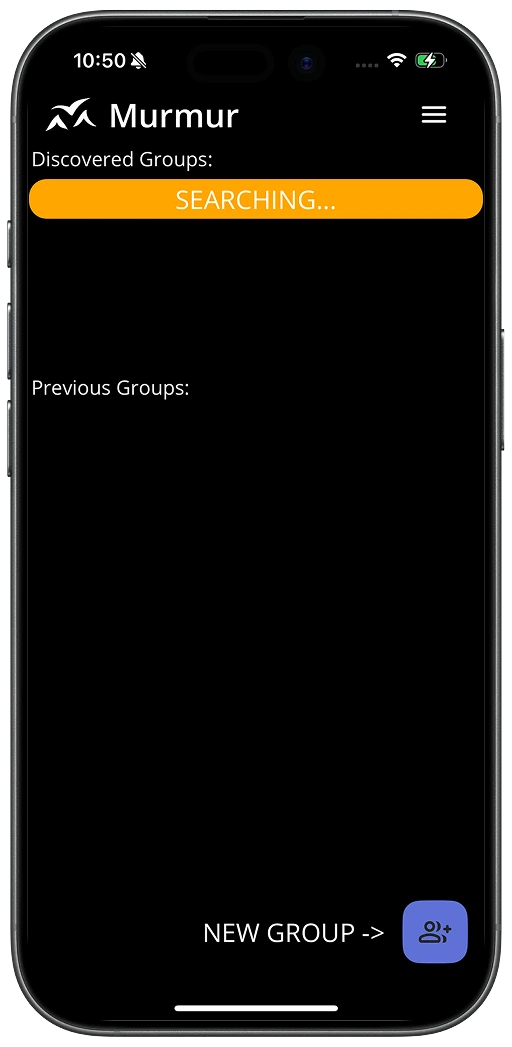
This is home in Murmur, from here find available groups to join or set up new ones. Murmur uses Bluetooth to search for nearby available devices also using the app.
Use the New Group button to begin the set up of a new group call.
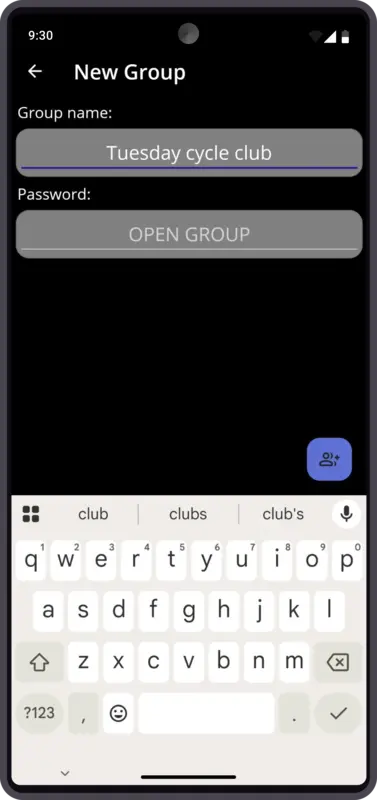
Set up a new group by giving it a name or number.
You can give the group a password. You can find out how to share that with invited group members in the next topic.
Save your group by clicking the bottom right hand button again. Once saved the call connected screen will open.
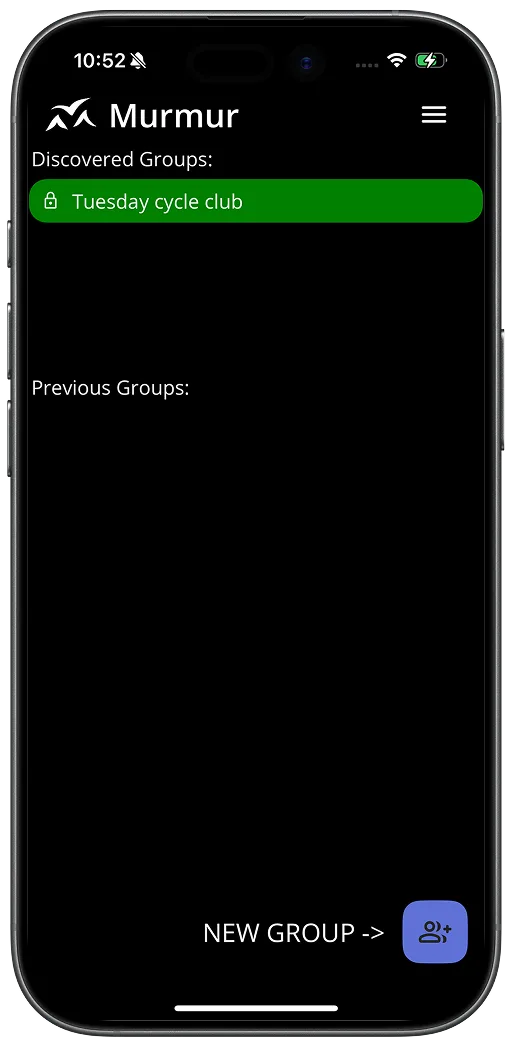
If you are joining a group set up by someone else, select it from the list of 'Discoved Groups'.
If you've joined a group before it will appear under 'Previous Groups'.
Click on the call you want to join.
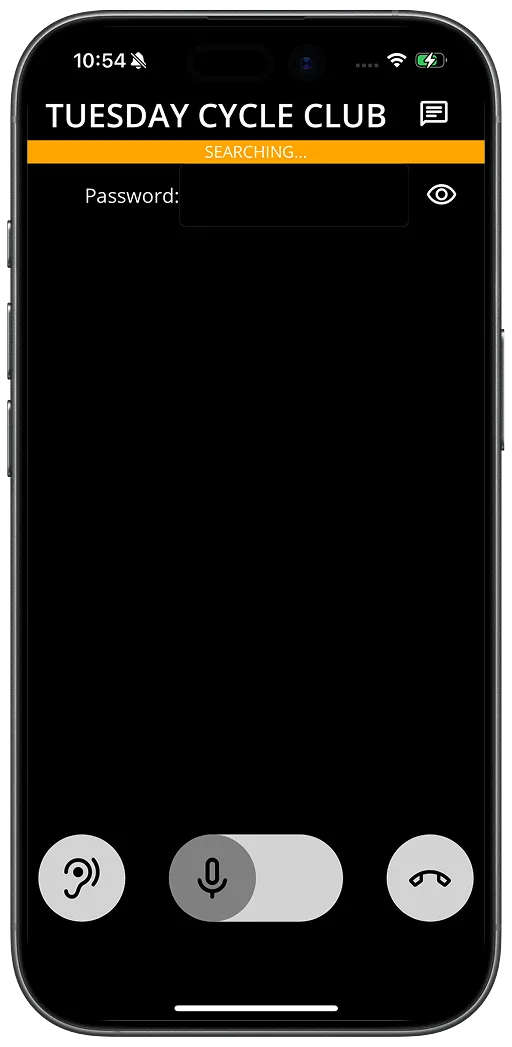
If you are joining a new group and a password has been set, the group creator can reveal the password/QR code on their screen by clicking the eye icon to the top right of the screen.
As the new joiner, click on your eye icon to open the QR code scanner. You'll then be added to the group.
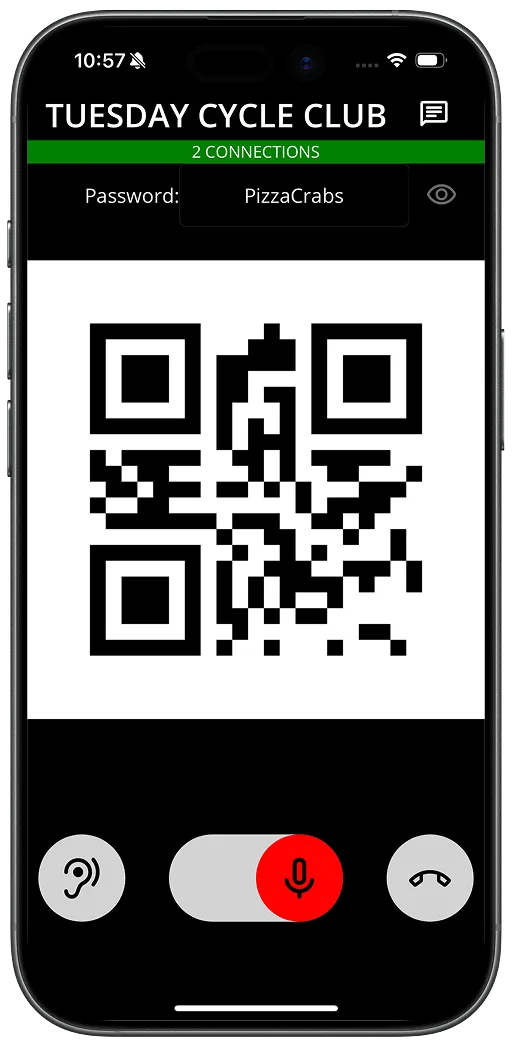
This is how the QR code will appear for scanning.
Whilst useful if you have multiple groups, say if you're using it for small teams on a field trip, a password is not required to use the app.
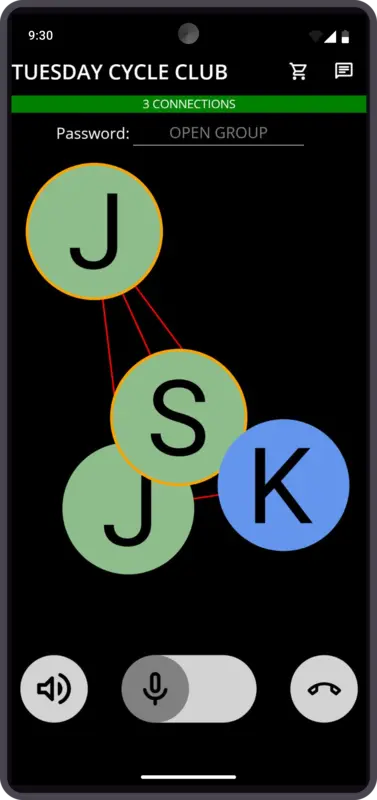
The status bar at the top of the screen, under the group call name, shows whether you are connected to the call.
Participants will appear as profile circles with initials or a chosen icon for identification. These circles will pulse with a coloured ring when that person is speaking.
Want to talk? Slide the microphone icon to talk. It will lock on in red when it is to the right. When you want to mute yourself, slide it back to the left. Use the end call icon to leave the call.
Message feature. If you want to send a text message to the group, rather than talk, for example, if you are in a quiet location, click on the top right message icon when in an active call to bring up the messenger window.
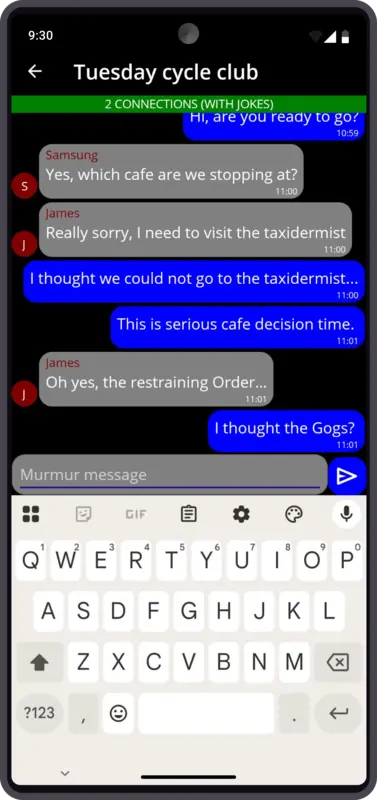
The message feature works like most of the texting apps out there. The messages you send will be unique to the group call you are in.
To return to the main call screen just click the back arrow or swipe right to go back.
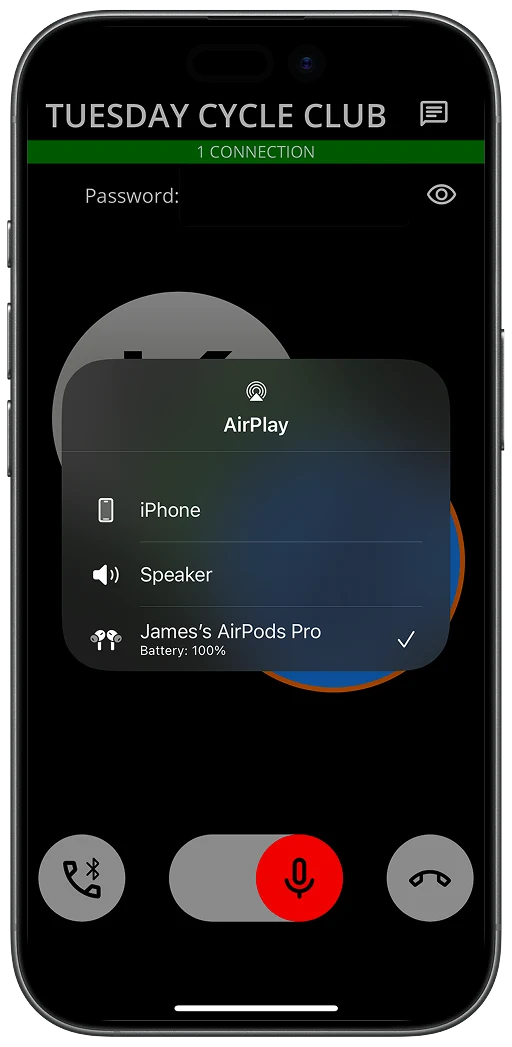
You can change the audio output of your call by clicking on the speaker or ear button on the bottom left hand side of the screen.
The app is Bluetooth headset compatible, for example, it works with AirPods and bone conducting headphones.
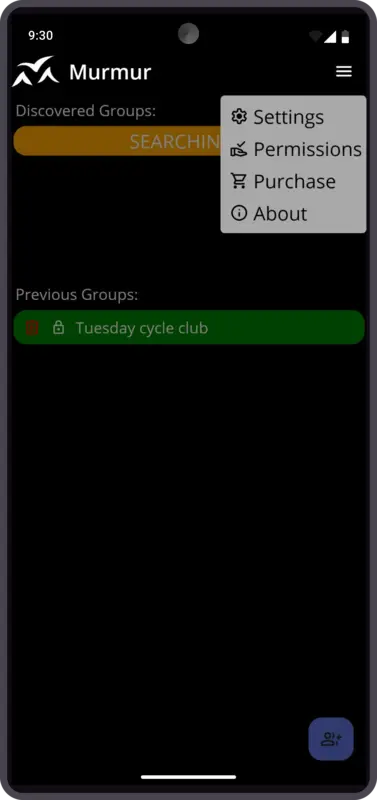
When on the Home screen navigate to the settings menu using the hamburger on the top right of the screen.
Options include: Update your profile; Change app permissions; Purchase the app; and version details.
It is a good idea to check which version of the app you are on. If there are ever any issues connecting to group calls, make sure all participants are on the same version.
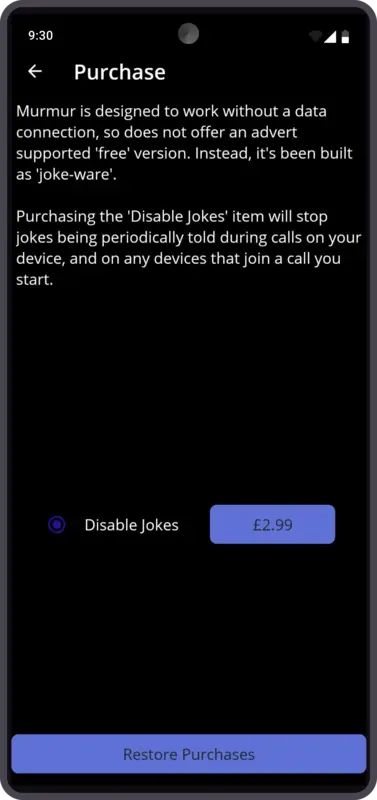
The app is distributed as joke-ware, instead of ads, a short bad joke will play every couple of minutes whilst you are on a call. You can turn this off by purchasing the app.
A one off purchase and the jokes will stop for you and anyone in any group you set up.
When you're in a group call you'll see a trolley icon on the top right next to the message icon. You can click on this to access the purchase screen.